
There was a time when “booting up” meant waiting long enough to consider making coffee, reconsidering your life choices, and then discovering you forgot the floppy disk. Today, the same experience can happen inside a browser tab while seventeen other tabs are quietly judging your RAM usage. Welcome to the wonderfully strange world of retro computers in your browser, where classic operating systems, vintage games, early programming environments, and historic machines come back to life without you needing a basement full of beige plastic.
Browser-based retro computing has become one of the most accessible ways to explore computer history. Instead of hunting down an IBM PC, Macintosh Plus, Amiga 500, TRS-80, PDP-11, or COSMAC Elf, you can open a modern browser and interact with software that once required dedicated hardware, special monitors, disk drives, arcane cables, and possibly a prayer to the capacitor gods. Thanks to JavaScript, WebAssembly, preservation projects, and a very dedicated community of emulator developers, vintage computing is no longer locked behind auctions, soldering irons, or museum glass.
This roundup looks at the best parts of the experience: what browser emulators can do, why they matter, which machines are especially fun to try, and how these digital time machines help preserve software culture. It is nostalgic, educational, sometimes clunky, and occasionally ridiculous in the best possible way. After all, nothing says “modern technology” like using a 2026 laptop to pretend you are trapped in 1984.
What Are Retro Computers in Your Browser?
Retro computers in your browser are emulated vintage systems that run directly through web technologies. Instead of installing a standalone emulator, downloading disk images, configuring BIOS files, and spending an hour wondering why the keyboard mapping hates you, you simply visit a web page and launch a machine. The browser becomes the display, the keyboard, the disk drive, and sometimes even the cassette deck.
These systems can range from simple single-board computers to full graphical operating systems. Some emulate early hobbyist machines such as the KIM-1 or COSMAC Elf. Others recreate famous home computers like the Apple II, Commodore 64, TRS-80, Amiga, and classic Macintosh. More advanced examples run DOS, Windows 3.x, Windows 98, early Linux, Unix on a PDP-11, or complete x86 environments.
The magic happens through emulation. An emulator imitates the behavior of old hardware in software. It recreates the CPU, memory, graphics, sound, input devices, storage, and sometimes even the quirks that made the original machine charming or deeply annoying. In browser-based emulation, that work is handled by JavaScript, WebAssembly, HTML5 canvas, audio APIs, and clever loading systems.
Why Browser-Based Emulation Matters
At first glance, browser emulation looks like a toy. Click, load, play with MacPaint, type a BASIC program, crash something, laugh, move on. But it is more important than that. These projects preserve computing history in a way that is interactive, not merely documentary. Reading about an old operating system is useful. Actually using it teaches something different.
When you boot a virtual Macintosh System 7, you feel how direct and restrained early graphical interfaces were. When you run DOS in a browser, you understand why command-line literacy mattered. When you try Unix Sixth Edition on a PDP-11, you discover that history is not always user-friendly, especially when the backspace key behaves like it was designed during a committee argument.
Browser retro computing also removes barriers. Original hardware can be expensive, fragile, rare, and difficult to maintain. Large systems may require unusual power, cooling, storage media, terminals, or expertise. Even smaller home computers need working parts, adapters, and software. Web-based emulators make these machines available to students, hobbyists, historians, programmers, and curious readers who do not have room for a museum in their closet.
The Internet Archive and the Rise of In-Browser Preservation
One of the biggest forces in browser-based software preservation is the Internet Archive. Its software collections use browser emulation to make old programs, operating systems, games, and educational titles playable directly online. Through projects such as JSMESS and later Emularity, the Archive helped turn the browser into a preservation platform.
This approach matters because software is not like a book scan. A screenshot of an old program captures its appearance, but not its behavior. A manual explains commands, but not timing, sound, controls, or the feeling of interacting with a limited machine. Emulation keeps software alive as an experience. You can launch an old game, test an office suite, explore educational software, or see how early interfaces organized information.
The Archive’s browser emulation also demonstrates a key point: old software is cultural history. Arcade games, Amiga demos, DOS utilities, early Macintosh applications, and educational programs all reflect the design assumptions of their time. They show what computers were expected to do, what users were expected to know, and how developers worked within tight technical limits.
Classic Macintosh in a Browser: A Friendly Time Warp
Among the most delightful browser retro computing experiences is classic Mac emulation. Projects such as PCE.js and Infinite Mac make it possible to run classic Macintosh systems directly online. These environments often include familiar software like MacPaint, MacDraw, HyperCard, early productivity tools, and classic games.
The early Macintosh remains fascinating because it made graphical computing feel approachable. The black-and-white interface, compact windows, menu bar, icons, and mouse-driven workflow may look simple now, but they were revolutionary to many users. Running System 6, System 7, or later classic Mac OS releases in a browser gives modern users a hands-on view of how personal computing evolved.
It also shows how much was accomplished with limited resources. A classic Mac environment feels small compared with modern operating systems, but it is surprisingly coherent. There are no notification storms, no forced cloud sync prompts, and no operating system update demanding emotional commitment. It is just you, a tiny screen, a menu bar, and the oddly satisfying confidence that comes from opening MacPaint.
DOS and Windows: The Beige Kingdom Returns
DOS emulation in the browser is another major attraction. Tools such as js-dos and DOSBox-based web projects allow old DOS games and applications to run inside a modern browser. This is especially popular because DOS had an enormous software library: games, utilities, programming tools, shareware experiments, business applications, and educational programs.
For many users, DOS is the gateway drug of retro computing. It has enough familiarity to be approachable and enough weirdness to feel adventurous. You type commands, mount drives, run executables, adjust sound settings, and occasionally learn that memory management in the 1990s was less “plug and play” and more “beg and negotiate.”
Browser-based x86 emulators such as v86 go even further by running operating systems like Linux, Windows 98, and other PC-compatible environments. These projects are impressive because x86 hardware is complex, and recreating it in a browser requires serious engineering. With WebAssembly and modern JavaScript engines, performance has improved dramatically, making once-unthinkable browser emulation surprisingly usable.
PCjs and the Original IBM PC Experience
PCjs is one of the standout projects for anyone interested in the IBM PC and other early machines. It uses JavaScript to emulate historic hardware and software, including IBM PC systems, early operating environments, and classic applications. The project is especially useful because it presents machines in a way that feels educational, not just nostalgic.
The original IBM PC shaped the modern computing world. Its architecture, expansion model, operating systems, and clone ecosystem influenced decades of hardware and software development. Running an IBM PC emulator in a browser lets users experience the pace and constraints of early PC computing: low-resolution displays, simple sound, floppy disk workflows, and software that expected users to read manuals rather than click “next” repeatedly.
PCjs is also a reminder that retro computing is not only about games. Games are fun, obviously, but old spreadsheets, word processors, programming tools, diagnostics, and operating systems tell a broader story. They reveal how people worked, learned, calculated, wrote, and experimented before modern graphical polish became standard.
Amiga, TRS-80, KIM-1, and Other Machines Worth Trying
A good browser retro roundup would be incomplete without the machines that gave personal computing its personality. The Amiga, for example, was famous for advanced graphics, sound, multitasking, and a creative software culture. Trying an Amiga emulator in a browser gives you a glimpse of why its fans still speak about it with the intensity usually reserved for classic cars and regional pizza.
The TRS-80 offers a different kind of charm. It represents an era when home computers were approachable but still demanded patience. A blinking prompt, monochrome display, and BASIC interpreter can teach programming fundamentals better than many modern environments because there is nowhere to hide. The computer waits. You type. It either works or it does not. Drama!
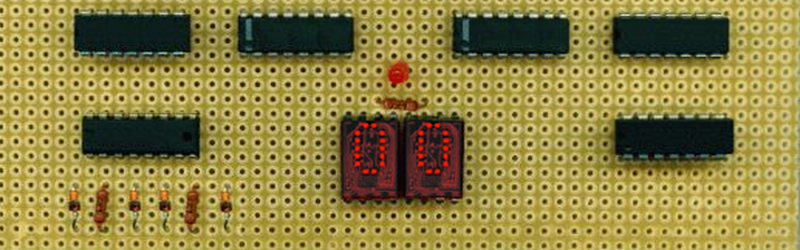
Single-board systems such as the KIM-1 and COSMAC Elf go even deeper into hobbyist history. These were not consumer-friendly machines in the modern sense. They were learning platforms, experiment boards, and gateways into understanding how CPUs, memory, input, and output actually functioned. Browser versions preserve that spirit without requiring you to wire LEDs, switches, and a power supply on your kitchen table.
Mainframes, Minis, and Unix: When Retro Gets Serious
Some of the most interesting browser-accessible systems are not home computers at all. PDP-11 emulators, Unix environments, Multics demonstrations, and other historical systems show the roots of operating system design, programming culture, and networked computing. These are not always as immediately friendly as a classic Mac or DOS game, but they are deeply rewarding.
Running early Unix in a browser can feel like archaeology with a command prompt. The tools are familiar but different. Commands may behave differently. Text editing may feel like a puzzle box. Documentation becomes part of the experience. Yet this is exactly why it matters: modern computing did not appear fully formed. It grew through experiments, constraints, compromises, and brilliant ideas that still echo through today’s systems.
Projects that provide access to vintage systems through browser terminals, emulation, or hybrid real-hardware setups add another layer. They allow users to log into historic operating environments rather than simply view screenshots. That turns computing history from a museum label into a hands-on session.
How WebAssembly Changed the Game
Early browser emulators were impressive, but performance could be uneven. JavaScript alone made many things possible, but complex systems often ran slowly or required careful optimization. WebAssembly changed the landscape by giving browsers a faster, lower-level execution format that works well for ported emulators.
With WebAssembly, projects can bring mature emulator codebases into the browser with better performance than older pure JavaScript approaches. That means smoother graphics, better audio, faster CPU emulation, and more ambitious systems. It also means users can enjoy retro computing without installing native software, which is a major advantage for classrooms, libraries, museums, and casual exploration.
This does not mean every browser emulator is perfect. Some systems still load slowly. Audio may crackle. Keyboard mapping can be odd. Mobile support varies. Saving files may require special handling. But compared with the old days of hunting emulator builds, ROM versions, configuration files, and forum posts from 2007, the browser experience feels almost luxurious.
Legal and Ethical Considerations
Retro computing in the browser also raises important legal and ethical questions. Hardware emulation is generally separate from software rights. An emulator may be legal, open source, and technically impressive, while the operating system or game it runs may still be copyrighted. Responsible projects handle this carefully by using public-domain software, licensed software, user-provided files, or preservation frameworks.
For users, the practical rule is simple: enjoy reputable browser emulation projects, respect software ownership, and avoid assuming that “old” automatically means “free.” Many classic games and operating systems remain protected. Preservation is valuable, but so is respecting creators and rights holders.
The best browser retro computing projects tend to be transparent about what they provide, how they source software, and what users may need to supply themselves. This transparency helps keep the hobby sustainable and credible.
Best Uses for Retro Computers in Your Browser
Learning Computer History
Browser emulators are excellent teaching tools. Students can compare early graphical interfaces, command-line systems, programming languages, and hardware limits without needing physical machines. A teacher can demonstrate DOS, classic Mac OS, Unix, or BASIC in minutes.
Testing Old Software Ideas
Developers can use retro environments to understand older design patterns, file formats, UI conventions, and performance constraints. There is something humbling about seeing how much software once accomplished with tiny memory budgets.
Enjoying Classic Games
Games remain one of the most popular reasons to use browser emulators. Arcade titles, DOS games, Amiga releases, and early Mac games are fun because they are direct, inventive, and often brutally honest about difficulty.
Preserving Digital Culture
Software is fragile. Disks decay, hardware fails, formats vanish, and knowledge disappears. Browser emulation helps keep old systems visible and usable for future generations.
Practical Tips Before You Start
First, use a modern desktop browser when possible. Chrome, Firefox, Edge, Safari, and other current browsers generally handle WebAssembly and HTML5 features well. Mobile browsers can work for some emulators, but keyboard-heavy systems are usually better with a physical keyboard.
Second, be patient. Some emulators need time to load disk images, boot operating systems, or initialize virtual hardware. A retro computer that takes a little while to start is not broken; it is simply committed to historical accuracy.
Third, read the on-screen instructions. Many old systems use keyboard shortcuts that feel strange today. Some arcade emulators require coin and start keys. Some Unix systems use older conventions. Some single-board computers expect hexadecimal input. Your modern instincts may betray you, but the manual will forgive you.
Finally, explore beyond games. Try a word processor, paint program, spreadsheet, programming language, or operating system utility. Retro computing becomes more meaningful when you see how people actually used these machines.
Personal Experience: What It Feels Like to Use Retro Computers in a Browser
The first time you launch a retro computer in your browser, it feels like a magic trick performed by a very nerdy wizard. One moment you are staring at a normal web page. The next, a complete vintage machine is blinking at you, waiting for input, as if the last forty years were merely a software update with commitment issues.
My favorite part of the experience is the speed contrast. Not performance speed, exactly, but mental speed. Modern computers encourage frantic multitasking. Notifications slide in, tabs multiply, apps sync, cloud services whisper, and everything wants your attention. A retro system in the browser slows the room down. A BASIC prompt does not care about your inbox. MacPaint does not ask you to enable two-factor authentication. DOS does not recommend trending videos. The machine simply waits for you to do something specific.
Trying classic Mac OS in a browser is especially charming. The interface feels clean, deliberate, and oddly calming. You can open a drawing program, click around the menus, and immediately understand why early graphical computing felt so inviting. The limitations are obvious, but so is the elegance. It is like visiting a tiny apartment where every object has a purpose and none of them are trying to sell you a subscription.
DOS, on the other hand, feels like stepping into a garage full of labeled boxes, half-labeled boxes, and one mysterious box making a sound. It is powerful, direct, and occasionally grumpy. Running old DOS games in a browser brings back the wonderful ritual of typing commands, launching executables, and hoping the sound works. When it does, the reward feels personal. When it does not, congratulations: you have experienced authentic retro computing.
The single-board emulators are even more educational. A KIM-1 or COSMAC Elf does not hide the machine from you. There is no glossy desktop metaphor. You are close to the processor, the memory, the switches, and the logic. It makes modern computing feel almost absurdly luxurious. Today we complain when an app takes three seconds to open. Earlier hobbyists were thrilled to make a few LEDs blink in the right order.
What makes browser-based retro computing so enjoyable is that it removes the fear. Real vintage hardware is wonderful, but it can be intimidating. Components fail. Power supplies age. Keyboards break. Disk drives require care. Browser emulators let you experiment freely. You can crash the system, reboot, reload the page, and try again. No smoke, no panic, no emergency search for replacement chips.
There is also a strong sense of connection. These old systems were built by people solving problems with limited tools. Every pixel, beep, command, and menu reflects a design choice. Using them interactively helps you appreciate the creativity behind modern computing. The browser becomes more than a convenience; it becomes a bridge between generations of machines.
And yes, sometimes the whole thing is funny. Watching a powerful modern computer carefully imitate a machine with less memory than a single modern image file is objectively ridiculous. But it is also beautiful. Retro computers in your browser remind us that progress is not only about speed and scale. It is about ideas, constraints, curiosity, and the joy of making a machine do something interesting.
Conclusion
Retro computers in your browser are more than nostalgic toys. They are living exhibits, teaching tools, preservation systems, and playgrounds for curious minds. Whether you want to run classic Mac OS, explore DOS games, boot an IBM PC, experiment with a TRS-80, poke around a PDP-11, or simply marvel at how far computing has come, browser emulation makes the past instantly accessible.
The best part is that you do not need a warehouse, a repair bench, or a suspiciously heavy box labeled “cables.” You need only a modern browser and a willingness to click, type, break things, and learn. In a world obsessed with the newest device, retro browser emulators remind us that old computers still have plenty to teach. They may be slow, blocky, and occasionally stubborn, but they are also full of personality. Honestly, that is more than can be said for some modern smart appliances.
Note: This article is based on real browser-based retro computing projects, digital preservation work, and publicly documented emulator platforms. It is written as original SEO content for web publication without source-link clutter.


