
If you still have an Xbox 360 controller tucked in a drawer, congratulations: you own one of the most beloved PC gamepads ever made. It is comfortable, familiar, durable, and shaped in a way that says, “Yes, I absolutely plan to spend three hours racing, fighting, or button-mashing tonight.” Even years later, plenty of Windows gamers still like the Xbox 360 controller because it feels natural in the hands and works especially well with games that were designed around Xbox-style button prompts.
The good news is that using an Xbox 360 controller on Windows is usually pretty straightforward. The slightly less good news is that there is a big difference between a wired Xbox 360 controller and a wireless one. If you mix up the accessories, Windows can turn into a grumpy hall monitor and refuse to cooperate. Once you know the rules, though, setup becomes much easier.
In this guide, we will walk through the three best ways to use your Xbox 360 controller for Windows: plugging in a wired controller, connecting a wireless controller with the proper receiver, and stretching the controller beyond standard gameplay for Steam, retro gaming, and even couch-friendly desktop control. We will also cover troubleshooting tips, real-world examples, and the kind of practical advice you usually only learn after yelling at a USB port for ten minutes.
Why the Xbox 360 Controller Still Works So Well on Windows
Before getting into the setup methods, it helps to understand why this controller still has such a loyal fan base. The Xbox 360 controller became a de facto standard for Windows gaming for years. Many PC games were designed with Xbox-style input in mind, so menus, prompts, and button layouts often feel more natural on a 360 pad than on random third-party controllers with mystery branding and a D-pad that feels like a stale cracker.
That matters because a good controller should disappear in your hands. You should be focused on your game, not on deciphering whether Button 7 is actually the right trigger or whether the left stick is pretending to be a weather vane. The Xbox 360 controller usually keeps things simple, and simplicity is beautiful.
Way 1: Use a Wired Xbox 360 Controller on Windows
If you have a wired Xbox 360 controller, this is by far the easiest method. In many cases, it is almost boringly simple. Plug it in, let Windows recognize it, and start playing. No pairing dance. No batteries. No “why is this thing blinking at me like it knows a secret?” energy.
What You Need
- A genuine or compatible wired Xbox 360 controller
- An available USB port on your Windows PC or laptop
- A game that supports controller input
How to Set It Up
- Plug the controller into a USB port on your PC.
- Wait a few seconds while Windows detects and installs the required driver.
- Open a controller-friendly game and test the buttons and sticks.
- If something feels off, open Windows game controller settings and test the inputs before blaming your controller, your PC, or the moon phase.
For most people, this method is the winner because it is reliable and low-maintenance. Wired means low latency, no batteries, and fewer chances for wireless interference. If you mainly play platformers, fighting games, sports titles, indie games, or emulators at a desk, a wired Xbox 360 controller is still a perfectly solid option.
Best Uses for a Wired Setup
A wired Xbox 360 controller works especially well for:
- Single-player PC games at a desk
- Retro emulation on a Windows machine
- Steam games with native controller support
- Fighting games where a stable connection matters
- Budget gaming setups where “free from the closet” beats “new from the store”
If you sit close to your PC, wired is often the smartest choice. It is not glamorous, but it works. And honestly, “it works” is one of the sexiest phrases in technology.
If Windows Does Not Recognize It Right Away
Most of the time, Windows handles setup automatically. If it does not, try another USB port first. That sounds obvious, but it solves more problems than anyone wants to admit. If the controller still does not appear correctly, restart the PC, reconnect the controller, and test it again. In older edge cases, the device may need a manual driver nudge through Device Manager, but for a true wired 360 controller, that is usually not necessary on modern Windows systems.
Way 2: Use a Wireless Xbox 360 Controller with the Proper Receiver
This is the method that confuses people most, so let’s clear it up fast: a wireless Xbox 360 controller does not connect to Windows over Bluetooth. It uses older proprietary wireless technology, which means you need an Xbox 360 Wireless Gaming Receiver for Windows or a compatible equivalent. Without that receiver, your controller is basically a very nice paperweight with thumbsticks.
What You Need
- A wireless Xbox 360 controller
- AA batteries or a charged battery pack
- An Xbox 360 Wireless Gaming Receiver for Windows
- A Windows PC with an open USB port
How to Connect It
- Plug the wireless receiver into your PC.
- Let Windows install the driver automatically if available.
- Turn on the controller.
- Press the sync button on the receiver.
- Press the sync button on the controller.
- Wait for the lights to stop flashing and settle into a connected position.
Once paired, the controller should behave like a normal gamepad in controller-compatible PC games. This setup is great for couch gaming, living room PCs, split-screen sessions, and any situation where you do not want a cable stretched across the room like a tripwire designed by a cartoon villain.
Important Warning About the Play & Charge Cable
This is where many people get tripped up. A Play & Charge cable may power or charge a wireless Xbox 360 controller, but it is not the same thing as the wireless receiver you need for regular PC gameplay. If your wireless controller is plugged in by USB and Windows still refuses to treat it like a proper controller, there is a good chance you are using the wrong accessory for the job.
Why Wireless Is Worth It
Wireless play is perfect for a home theater PC, a laptop connected to a TV, or local co-op sessions where everyone wants to sit back instead of hunching over a desk like office goblins. One receiver can support multiple controllers, which makes it surprisingly handy for older sports games, fighting games, co-op beat ’em ups, and party sessions on Windows.
Common Wireless Problems
If the wireless setup refuses to behave, check these issues first:
- Low battery power: The controller may turn on but fail to stay connected properly.
- Wrong receiver: Newer Xbox Wireless Adapters are for newer Xbox controllers, not Xbox 360 wireless pads.
- Third-party receiver driver issues: Some generic receivers need manual driver selection in Device Manager.
- USB port weirdness: Try a different port, especially on desktops with front-panel USB quirks.
- Interference: Move the receiver closer if the connection feels inconsistent.
If you bought a low-cost third-party receiver, do not panic if it is not flawless out of the box. Some work beautifully; some behave like they were assembled during a thunderstorm. Manual driver selection can often rescue them.
Way 3: Use Your Xbox 360 Controller Beyond Basic Gaming
Once your controller is connected, you are not limited to launching one game and calling it a day. This is where things get fun. Your Xbox 360 controller can become part of a full Windows gaming setup, especially if you use Steam, emulators, or a couch-based PC experience.
Use It with Steam and Big Picture Mode
Steam remains one of the easiest places to use a controller on Windows. If you like launching games from the couch, Big Picture mode is a natural fit. It is built for controller-friendly navigation, and official Microsoft Xbox controllers work well with it. That means your old 360 pad can still feel surprisingly modern in the right setup.
This works especially well for action games, racing titles, platformers, twin-stick shooters, and many indie releases. If a game supports XInput-style control well, the experience is often close to effortless. That is one reason Xbox controllers earned such a strong reputation on PC in the first place.
Use It for Emulators and Older PC Games
The Xbox 360 controller is also a favorite for retro gaming on Windows. Console-style layouts feel right at home in emulators for classic systems, arcade titles, and older PC releases. In many emulators, mapping the controller is simple, and the familiar face buttons make it easy to jump in without a long setup process.
If a particular game does not recognize the controller automatically, you can often fix that through in-game input settings, Steam controller support, or a controller mapping utility. That is especially useful for older titles that were never designed with native gamepad support in mind.
Use It as a Couch-Friendly Desktop Controller
This is the sneaky bonus method. With third-party software, you can use an Xbox 360 controller to control parts of the Windows desktop like a mouse. It will never replace a real keyboard and mouse for serious work, but for a living room PC, it can be surprisingly handy.
For example, if your PC is hooked up to a TV, a controller-based desktop tool can let you move the cursor, click around, scroll, and launch apps without grabbing a separate mouse every time. It is great for media-center setups, casual browsing, opening Steam, or hopping into a game from the sofa. Think of it as giving your controller a side hustle.
Is it the most elegant Windows workflow on Earth? Absolutely not. Is it useful when you are already planted on the couch under a blanket and refuse to move? Very much yes.
How to Test Whether Your Controller Is Working Properly
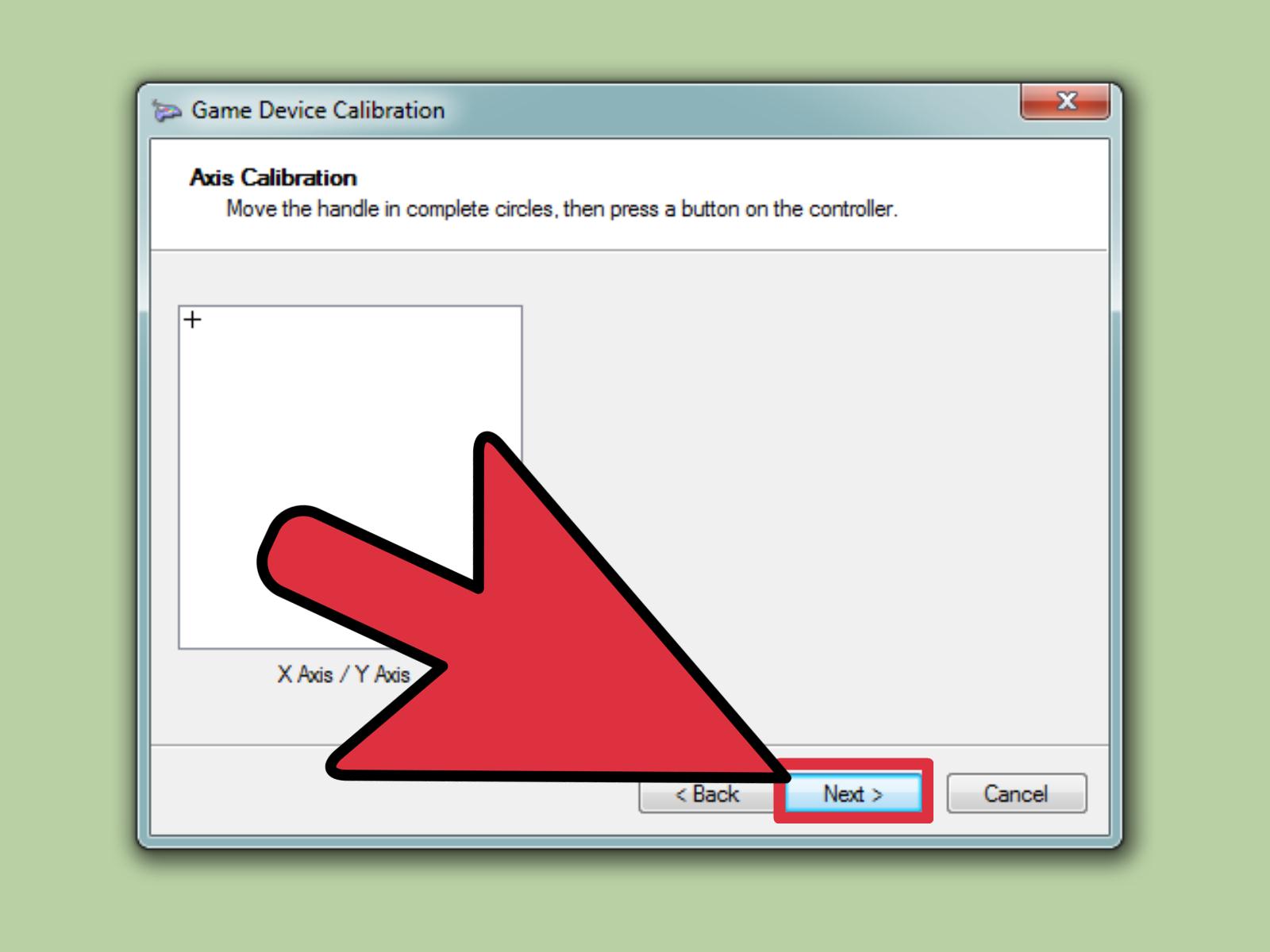
Before assuming your controller is broken, test it in Windows. Open the game controller settings and check whether button presses, triggers, and analog sticks respond correctly. This helps you figure out whether the issue is with Windows, the game, the receiver, or the controller itself.
If the controller appears in Windows but not in a specific game, the problem is often game settings rather than hardware. That is actually good news, because software problems are much easier to fix than dead hardware. Usually.
Troubleshooting Tips That Save Time
1. Try Another USB Port
Yes, this advice is older than the internet itself. Yes, it still works.
2. Restart the PC
Windows occasionally needs a gentle reminder that a controller exists.
3. Confirm Whether the Controller Is Wired or Wireless
A lot of confusion starts here. A wired controller plugs directly into USB. A wireless controller needs the proper receiver. Mixing up the accessories is one of the biggest causes of failed setup.
4. Check the Game’s Controller Settings
Some games default to keyboard and mouse, even when a controller is connected. Look for a controller or input menu and switch manually if needed.
5. Test in More Than One Game
If the controller works in one game but not another, your controller is probably fine. The second game is just being dramatic.
Is an Xbox 360 Controller Still Worth Using on Windows?
Yes, if you already own one and it still works well. No, if you are shopping from scratch and expect modern wireless convenience. That is the honest answer.
A wired Xbox 360 controller remains a strong budget-friendly option for Windows gaming. A wireless one can also be excellent, but only if you have the proper receiver and do not mind a slightly more old-school setup. The controller still feels good, still handles many genres beautifully, and still makes sense for retro gaming, local co-op, Steam play, and casual PC sessions.
What you are really buying into here is comfort and familiarity. The Xbox 360 controller may not be the newest pad on the block, but it still knows how to do the job. Kind of like that veteran mechanic who owns three screwdrivers, distrusts flashy tools, and is somehow always correct.
Real-World Experiences: What Using an Xbox 360 Controller on Windows Actually Feels Like
In real life, the Xbox 360 controller on Windows tends to shine most when convenience matters more than perfection. A lot of players are not trying to build a tournament-grade setup; they just want to sit down, launch a game, and have the controller work without a lecture. That is where the 360 pad still earns its keep. On a desktop PC, a wired controller often feels delightfully low-drama. You plug it in, Windows recognizes it, and suddenly a racing game, action platformer, or dungeon crawler feels more natural than it would on a keyboard. It is a little like swapping dress shoes for sneakers. Same destination, far less complaining from your feet.
The wireless experience is different, but in a good way once everything is set up properly. On a couch gaming setup, especially with a Windows mini PC or gaming laptop connected to a TV, a wireless Xbox 360 controller can make the whole room feel more console-like. That matters more than people admit. The moment you stop balancing a keyboard on your knees and start navigating games with a controller, the setup feels less like “computer near television” and more like an actual entertainment system. For local co-op sessions, this is where older 360 controllers still have real charm. A couple of friends, a party game, maybe some retro fighters or arcade beat ’em ups, and suddenly outdated hardware feels timeless.
There is also a strong nostalgia factor. Many PC players grew up during the years when the Xbox 360 controller became the unofficial king of Windows gaming. Seeing those button prompts in games still feels familiar. A, B, X, Y, shoulder buttons, triggers, done. No translating weird symbols. No learning curve. No “why is jump mapped to the left eyebrow of the controller?” nonsense. That kind of familiarity makes a difference when you want to relax instead of troubleshoot. It is especially noticeable in older PC titles and emulators, where the 360 layout often feels exactly right.
At the same time, the real-world experience is not flawless. Wireless setup can be annoying if you bought the wrong receiver or grabbed a bargain-bin adapter with questionable manners. Some games still need manual configuration. Some desktop-control tools are clever but slightly clunky. And if you are used to the newest Xbox controllers, the 360 pad can feel a little dated in the triggers, D-pad, and wireless ecosystem. But “dated” does not mean “bad.” It usually just means you need a little patience and the right expectations.
For many people, that is the sweet spot. The Xbox 360 controller on Windows is not the newest or fanciest option, but it is often one of the most satisfying. It is dependable, familiar, and still very usable across a wide range of games. If you already own one, there is a good chance it can save you money and give you a great experience on PC. And that is hard to argue with. In a tech world that constantly tries to convince you everything from last Tuesday is obsolete, it is refreshing when an older controller still plugs in, wakes up, and quietly says, “I got this.”
Final Thoughts
If you want the simplest path, use a wired Xbox 360 controller on Windows. If you want couch freedom, use a wireless controller with the proper Xbox 360 receiver. If you want extra flexibility, use the controller with Steam, emulators, and desktop-control tools to turn it into more than just a gamepad. Those are the three smartest ways to keep this classic controller useful on a modern Windows PC.
In other words, your old Xbox 360 controller does not need to retire. It can still put in solid work on Windows, whether you are chasing lap times, clearing dungeons, revisiting retro classics, or just trying to launch Steam from the couch without getting up. And honestly, avoiding unnecessary movement is one of PC gaming’s most underrated quality-of-life features.