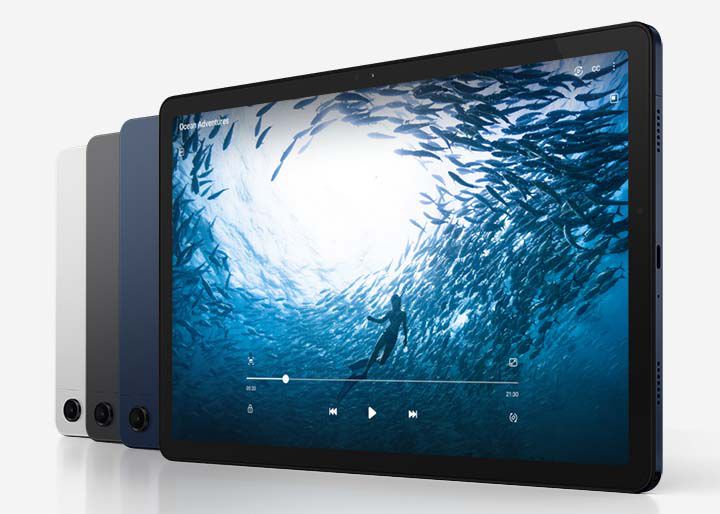

Multitasking on a tablet can either feel like a superpower… or like juggling three bowling balls while your notifications
heckle you from the sidelines. Samsung’s Galaxy Tab A9 and Galaxy Tab A9+ aim for the first option: big-enough screens,
practical software tools, and just enough performance to keep your day moving without turning “checking email” into an
accidental meditation retreat.
The headline promise is simple: open multiple apps, switch between them smoothly, and stay in controlwhether you’re
studying, working, running family logistics, or doing that noble modern task called “watching a video while pretending
to answer a text.” Let’s break down what “hassle-free multitasking” actually looks like on the Tab A9 and A9+and how to
get the most out of them.
Quick Snapshot: Galaxy Tab A9 vs. Galaxy Tab A9+
| Feature | Galaxy Tab A9 | Galaxy Tab A9+ |
|---|---|---|
| Display | 8.7″ LCD, 60Hz, 1340×800 | 11″ LCD, 90Hz, 1920×1200 |
| Multitasking on-screen | Up to 2 apps at once | Up to 3 apps at once |
| Processor (common configurations) | MediaTek Helio G99 (varies by market) | Snapdragon 695 (common in the U.S.) |
| Battery (typical) | 5,100mAh | 7,040mAh |
| Connectivity highlights | Wi-Fi; 4G LTE variants in some regions | Wi-Fi; 5G variants available |
| Big “work mode” feature | Multi-Window tools | Multi-Window tools + Samsung DeX support |
In plain English: the Tab A9 is the compact, grab-and-go option that still lets you do two things at once.
The Tab A9+ is the “I want my tablet to act like a mini workstation” pickespecially because it can show three apps
simultaneously and supports Samsung DeX on supported models.
What “Hassle-Free Multitasking” Means on Samsung Tablets
Multi-Window: Split Screen and Floating Apps
Samsung’s Multi-Window approach is designed to make “two apps open” feel normal instead of nerdy. The most common setup
is split screen (two apps sharing the display). When you need a third quick referencelike a calculator, chat bubble, or
calendaryou can often use a floating window (sometimes called pop-up view) depending on app behavior and your One UI version.
The shortcut is straightforward: open your Recent apps view, tap an app’s icon, and choose split screenthen pick your
second app. Many carriers document a similar flow, and it’s easy enough that you’ll do it without thinking after a day
or two. (Your thumbs will develop muscle memory. Your brain will be grateful.)
Two Apps vs. Three Apps: The Real Difference Between A9 and A9+
Here’s the practical difference that matters: the Galaxy Tab A9 supports showing up to two apps at once, while the Tab A9+
supports up to three apps on-screen simultaneously. That sounds like a small upgrade until you try a “real life” workflow:
doc on the left, browser research on the right, and Slack/Teams/chat as a third panel. Suddenly, you’re not switching as much,
and the whole experience feels calmer.
App Pairs: One Tap to Launch Your “Go-To Combo”
Once you find a split-screen layout you lovesay, Gmail + Google Docs, or YouTube + Notesyou can treat it like a preset.
Samsung’s multitasking tools on One UI commonly let you save combos (often via edge panels or taskbar-like shortcuts on some
tablets/versions). The win here isn’t the feature itself; it’s the habit. You stop “setting up” multitasking and start
living in it.
Why the Hardware Matters for Multitasking
Screen Size and Refresh Rate: The “It Feels Faster” Factor
The Tab A9’s 8.7-inch display is portable and convenient, but multitasking has less physical room. It’s great for a primary
app plus a reference applike a recipe and a grocery listwithout feeling cramped. The Tab A9+ jumps to an 11-inch panel and a
smoother 90Hz refresh rate in common configurations, which makes scrolling, app switching, and split-screen resizing feel more
fluidespecially when you’re bouncing between tasks quickly.
RAM and Storage: Where “Budget” Can Get Bossy
Multitasking stress-tests memory. If you open multiple apps, keep a browser with several tabs alive, and then return to a
spreadsheet, RAM determines whether everything stays put or reloads like it forgot who you are. Reviews and buying guides
often note the 4GB RAM configuration can feel sluggish under heavier multitasking, so opting for higher RAM (when available)
is one of the easiest upgrades you can make for day-to-day smoothness.
Storage also matters because it affects how comfortable you feel installing the apps you actually use. Many configurations
are sold with expandable storage (microSD support is commonly listed up to 1TB), which is especially useful for families,
students, and travelers who store videos, downloads, and large files.
Battery: The Silent Partner in Productive Chaos
Multitasking often equals more screen-on time, more background syncing, and more “just one more episode” moments. Typical
battery capacities often listed are around 5,100mAh for the Tab A9 and 7,040mAh for the Tab A9+. Bigger battery plus bigger
screen is a fair trade: you’re powering more pixels, but you’re also getting more endurance headroom for a long day of mixed use.
Samsung DeX: When You Want Your Tablet to Pretend It’s a Laptop
If Multi-Window is “two or three apps at once,” Samsung DeX is “desktop-style multitasking.” On supported Tab A9+ models,
DeX can present apps in resizable windows with a more PC-like layout. That’s a big deal for people who want to plug in a keyboard,
use a mouse, and treat the tablet like a lightweight productivity stationespecially for email, documents, web-based tools, and
school platforms.
The best part is psychological: DeX makes you behave like you’re in “work mode.” It’s the same apps, but your brain sees
windows and a taskbar-like experience and goes, “Okay, fine, we’re being responsible now.”
Multitasking Setups That Actually Make Sense
1) Student Setup: Notes + Lecture + Quick References
Use split screen with a note-taking app on one side and slides/reading material on the other. On the Tab A9+, add a third window
for a calculator, a dictionary, or a class chat. This reduces the classic student spiral: “I opened the browser for one fact,
and now it’s 47 minutes later and I’m reading about the history of paper.”
2) Work Setup: Email + Calendar + Task List
For everyday admin, pair email with a calendar view. On the A9+, your third app can be a to-do list or messaging app. The key is
keeping “communication” and “planning” visible at the same time so you stop bouncing between screens just to confirm what time a
meeting is.
3) Family Setup: Kids Mode + Parent Control Center
The Tab A9+ is commonly marketed as a family-friendly tablet, and multitasking helps parents too. You can keep a streaming app open
for kids while you pull up a timer, a schedule, or messageswithout handing over your phone. It’s like having a shared screen that
doesn’t steal your whole day.
4) Travel Setup: Maps + Bookings + Messaging
Split screen a map with your itinerary or booking confirmations. If you’re coordinating with others, keep a chat visible as a third
panel on the A9+. This is the moment where multitasking stops being “a feature” and starts being “why didn’t I do this sooner?”
Tips to Make Multitasking Feel Effortless
- Start in Recent apps: It’s the fastest way to launch split screen without hunting through menus.
- Resize like you mean it: Give the “active” app more room and the “reference” app less. You’re allowed.
- Use the bigger model for real work blocks: The 11-inch A9+ is simply more comfortable for side-by-side reading and writing.
- Pick apps that behave well: Most major apps multitask fine, but some games/video apps can be picky about split screen.
- Consider the 8GB RAM option if you multitask daily: It’s not glamorous, but it’s the difference between “smooth” and “why did it reload again?”
Common Multitasking Speed Bumps (and How to Avoid Them)
“My apps keep reloading.”
This is usually a memory pressure issuetoo many apps, too many browser tabs, or a lower-RAM configuration. Close what you’re not
using, reduce browser tabs, and (if you’re buying) prioritize higher RAM for heavier multitasking.
“This app won’t split-screen.”
Some apps limit split-screen or floating windows by design. If a specific app refuses to cooperate, try a web version in a browser,
or use a different app for that task.
“Typing feels slow.”
For productivity, a keyboard can change everything. Even a basic Bluetooth keyboard makes multi-window work more practical, especially
on the Tab A9+ where you’ll be tempted to do “real work” more often.
Which One Should You Choose?
Choose the Galaxy Tab A9 if you want:
- A smaller, lighter tablet that’s easy to hold for reading, browsing, and quick two-app multitasking
- A budget-friendly option for casual productivity (email + web, notes + video, shopping + checklist)
- A travel or “around the house” tablet that doesn’t feel like carrying a mini TV
Choose the Galaxy Tab A9+ if you want:
- A bigger 11-inch screen that’s more comfortable for split-screen work
- Three-app multitasking for school/work workflows
- Samsung DeX support on supported models for a more desktop-like experience
- Extra endurance headroom from the larger battery
One more honest note: if you’re the type of person who opens a doc, a browser, and a chat app daily, the Tab A9+ is the safer bet.
The bigger screen and three-window support reduce friction. The Tab A9 is excellent when you want portability first and productivity second.
Bonus: Real-World Multitasking Experiences (Approx. )
Here’s what multitasking on the Galaxy Tab A9 and A9+ tends to feel like in real lifeespecially once the novelty wears off and the
tablet becomes part of your routine. The first “aha” moment usually happens when you stop treating multitasking as a special mode
and start treating it like your default layout. Instead of opening an app, finishing the task, closing it, opening the next app,
and repeating the cycle, you begin parking the apps you “live in” side-by-side.
On the Galaxy Tab A9, the most natural rhythm is a primary app plus a helper app. Think: reading a PDF while taking notes, browsing
a recipe while updating a grocery list, or watching a tutorial while you keep a checklist open. The 8.7-inch screen is small enough
that you’ll quickly learn which app deserves the “big side” and which app can behave in a narrower column. Once you get used to
dragging the divider to resize, it feels less like multitasking and more like arranging your deskexcept you don’t have to find
where you put the pen.
The Galaxy Tab A9+ changes the vibe because the larger display makes split screen feel comfortable instead of compromised, and the
option for three apps on-screen can turn it into a little command center. A common work-from-home-style setup is email on the left,
a calendar or document in the middle, and a messaging app on the right. You’ll notice that your response time improvesnot because
you type faster, but because you stop context-switching. You don’t forget what you were doing while you hunt for the other app.
That’s a sneaky productivity win.
Entertainment multitasking is a surprisingly big deal, too. People often keep a sports stream or long video running while scrolling
product pages, reading news, or chatting. On the A9+, the smoother-feeling display in common configurations helps here: scrolling
and switching feels more fluid, which makes the whole device feel “less budget” than its price suggests. And for families, multitasking
isn’t just about getting more doneit’s about keeping the peace. If a kid is using the tablet for a game or video, it’s handy to
quickly pull up a schedule, a timer, or a message without yanking the whole experience away.
DeX (on supported A9+ models) is where some users discover the tablet can cover light “laptop moments.” If you connect a keyboard,
you’ll find yourself treating the tablet like a small workstation: web tabs for research, a doc for writing, and a chat window floating
nearby. It’s not a full replacement for a high-end laptopespecially for heavy creative softwarebut it’s more than enough for writing,
school portals, spreadsheets in the browser, and managing a busy inbox. In other words: the Tab A9+ doesn’t just multitask; it
encourages you to multitask like you have your life together. (Even if you’re still wearing socks that don’t match.)
SEO Tags


